Short answer
Use the Google Analytics Admin API method properties.accessBindings.create to grant the service account predefinedRoles/viewer access to the correct GA4 property.
Do this after confirming the property ID belongs to the website you want to report on. Many access problems come from adding the service account to the wrong GA4 property.
1. Confirm the correct GA4 property
Open Google Analytics and switch to the exact account and property for the website. Copy the numeric property ID from the property details screen.
If you manage many websites, it is easy to be inside a different property such as a Chrome Web Store property, demo site, or older project.
2. Add access with the Admin API
Open the Google Analytics Admin API explorer for properties.accessBindings.create. Use a Google account that already has Administrator access to the target GA4 property.
properties/123456789{
"user": "ga4-report-reader@your-project.iam.gserviceaccount.com",
"roles": [
"predefinedRoles/viewer"
]
}3. Verify with a dry run
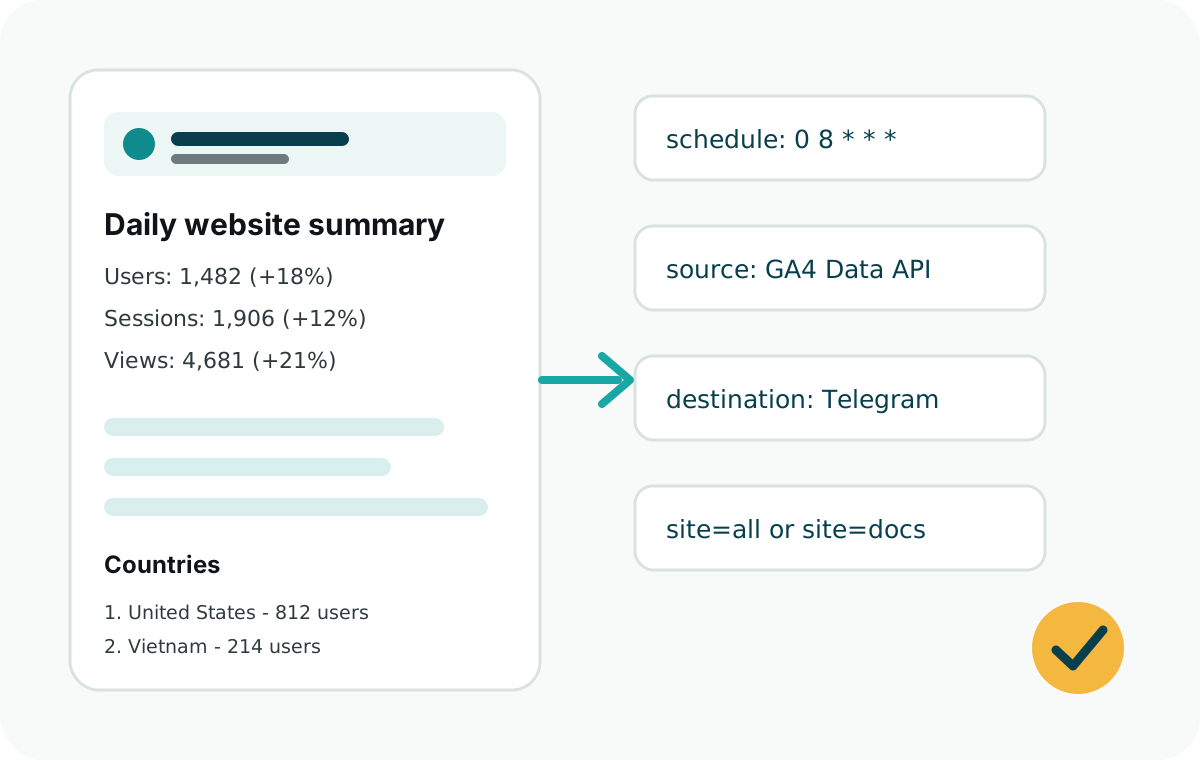
After the API returns success, run Web Analytics Reporter with dryRun: true. A dry run confirms the service account can read the property before sending a real Telegram message.
If the request still fails, check that GOOGLE_CLIENT_EMAIL matches the JSON key and that GOOGLE_PRIVATE_KEY preserves newlines or escaped \n characters.